Yubico Forum...visit our web-store at2014-01-08T11:03:06+01:00https://forum.yubico.com/feed.php?f=16&t=12742014-01-08T11:03:06+01:002014-01-08T11:03:06+01:00https://forum.yubico.com/viewtopic.php?t=1274&p=4777#p4777<![CDATA[Re: [HOW TO] - Turn your YubiKey into a remote control (Win7]]>
Thanks for posting this
Statistics: Posted by Tom — Wed Jan 08, 2014 11:03 am
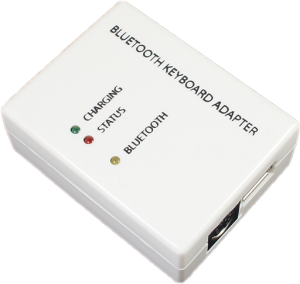
]]>2014-01-05T01:55:06+01:002014-01-05T01:55:06+01:00https://forum.yubico.com/viewtopic.php?t=1274&p=4766#p4766<![CDATA[[HOW TO] - Turn your YubiKey into a remote control (Win7)]]>Requirements: a Bluetooth-enabled Windows 7 PC, any YubiKey, and the Bluetooth Keyboard Adapter from http://handheldsci.com/kb Description: this how-to explains how you can use your YubiKey like a remote control through Bluetooth technology.
This following steps assume you already have a Bluetooth-enabled Windows 7 PC, a YubiKey, and the Bluetooth Keyboard Adapter.
Step 1: Plug your YubiKey into the Bluetooth Keyboard Adapter (a Nano would be a perfect fit!). Step 2: In the Bluetooth settings of Windows (open from notification area or Control Panel classic view) make sure you have enabled "Allow bluetooth devices to connect to this computer" Step 3: Open up the Windows Control Panel, and go to “Hardware and Sound”. Select “Add a Bluetooth device”. Step 4: When Windows is searching for your Bluetooth devices, switch on your Bluetooth Keyboard Adapter. When it shows up in the list, don’t double click it! Instead, right-click on the keyboard device and select “Properties. Step 5: In the window that opens, “Keyboard Properties”, wait a couple seconds for the services panel to load. Once it has loaded, check the box for “Drivers for keyboard, mice, etc. (HID)”. Click on “OK” to close the window.
Windows will load the drivers for your keyboard. After everything settles down, your Bluetooth-enabled YubiKey should be working with Windows. Try entering an OTP into Notepad, to make sure it’s working properly. Your computer should now recognize the Bluetooth-enabled YubiKey every time it is turned on (and Bluetooth is turned on on your computer).
There you have it: remote controlled authentication with YubiKey!
Disclaimer: I am not in any way affiliated with handheldsci.com, after thorough search it seems to be the only company offering a wiredkeyboard-to-bluetooth adapter. I am not responsible in any way if this how-to doesn't work for you; use at your own risk! Variations on this how-to may work for other types of devices; the key is to bypass the Bluetooth pairing request code, since you won't be able to type it in with your YubiKey... Credits to http://www.wayneandlayne.com/blog/2010/ ... ode-entry/ for the method to bypass the Bluetooth pairing request code for Windows 7. It also contains a method for Linux!
Statistics: Posted by ocn — Sun Jan 05, 2014 1:55 am